Turn your television into a radio. The free Chilli FM app brings feel-good hits from the Costa del Sol into your living room, and it takes a couple of minutes to set up. Find your TV below and follow the steps:
- Amazon Fire TV and Fire TV Stick
- Android TV, including Google TV (Sony, Philips, TCL, Hisense and more)
- Roku TV and Roku streaming sticks
The app is free, there’s no sign-up, and the live stream starts by itself when you open it.
Chilli FM on Amazon Fire TV
For the Fire TV Stick, Fire TV Cube and TVs with Fire TV built in.
- On your Fire TV home screen, select Find (the magnifying glass) and then Search.
- Type Chilli FM, or hold the microphone button on your Alexa remote and say “Chilli FM”.
- Select Chilli FM in the results and choose Get or Download. It’s free.
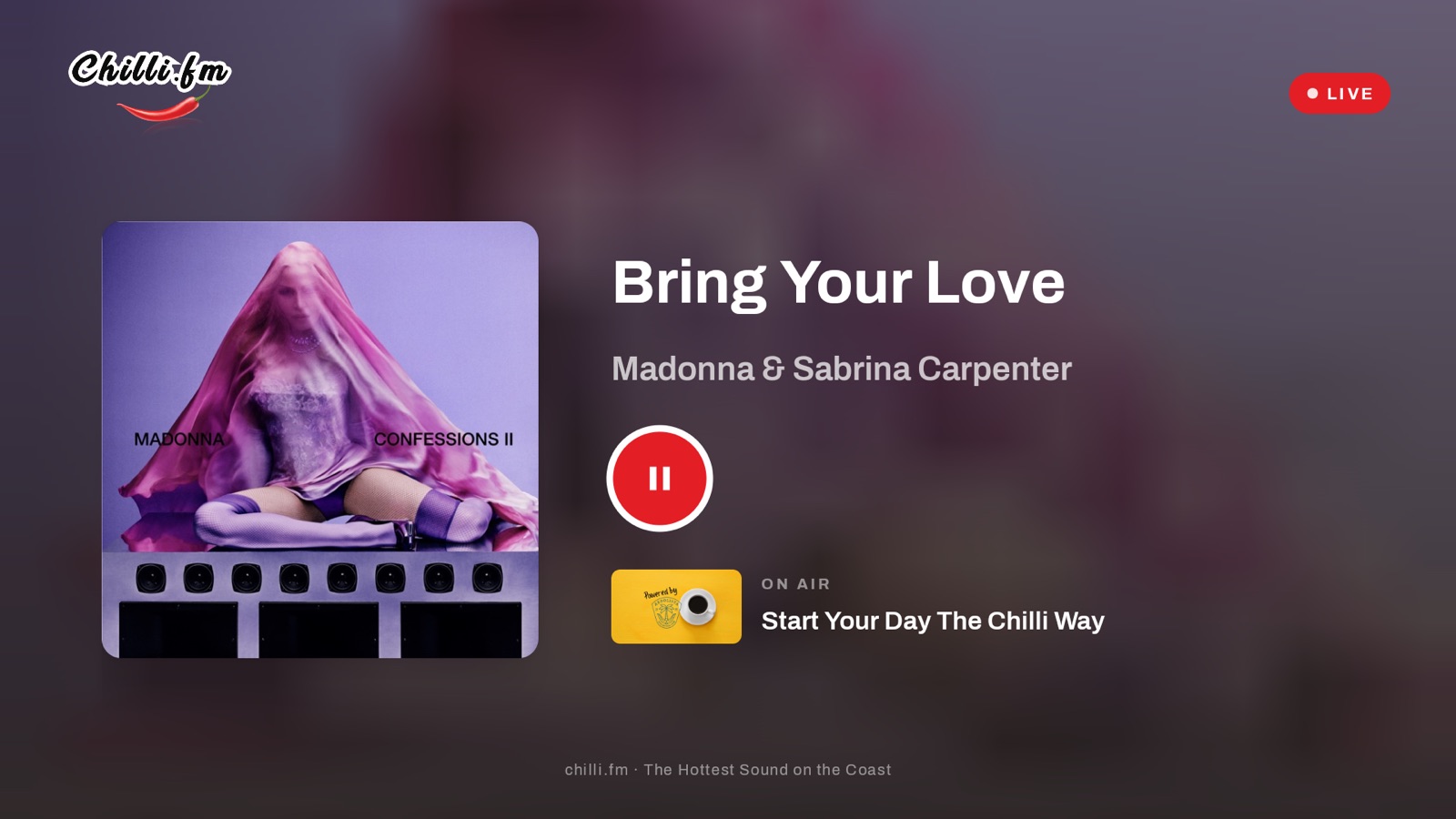
- Choose Open. The music starts by itself, with the song playing now, the album cover and the show on air.
Tip: to keep Chilli FM handy, highlight it in your apps, press the menu button (three lines) on your remote and choose Move to put it in the front row.
Chilli FM on Android TV (including Google TV)
Our Android TV app also works on TVs and sticks with Google TV, which is the newer version of Android TV. That includes TVs from Sony, Philips, TCL, Hisense and more, the Chromecast with Google TV and other Android TV boxes.
- On your TV’s home screen, go to Apps and open the Google Play Store. On Google TV you can also use Search at the top of the home screen.
- Type Chilli FM, or press the microphone button on your remote and say “Chilli FM”.
- Select Chilli FM in the results and choose Install. It’s free.
- Open Chilli FM from your apps. The live stream starts by itself, so there’s nothing else to press.
Chilli FM on Roku
For Roku TVs and Roku streaming sticks plugged into your TV.
- Press the Home button on your Roku remote, then choose Search from the menu on the left.
- Type Chilli FM with the on-screen keyboard. If your remote has a microphone button, you can just say “Chilli FM”.
- Select Chilli FM in the results and choose Add app (on older Roku devices this says Add channel). It’s free, and Roku may ask for your Roku PIN if you’ve set one.
- Chilli FM now appears on your Roku home screen. Open it and the live stream plays through your TV.
Tip: to move Chilli FM to the top of your home screen, highlight it, press the * button on your remote and choose Move app.
You can also add Chilli FM from the Roku app on your phone or on the Roku website: search for Chilli FM, add it, and it appears on your TV the next time your Roku updates.
Using Your Remote on Fire TV and Android TV
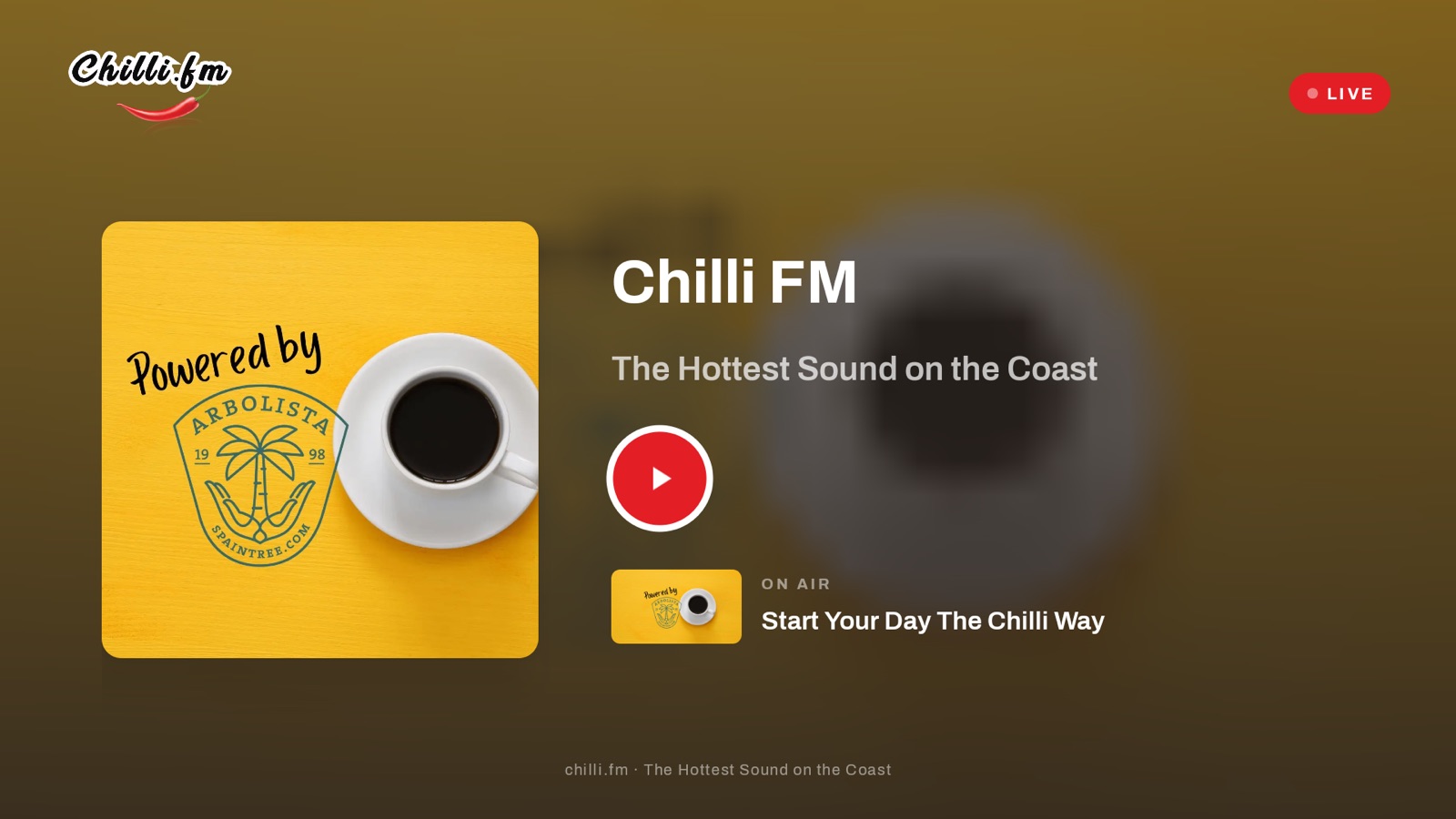
- The middle button (OK) on the big red button, or play/pause on your remote, pauses and restarts the music.
- Home takes you back to your TV’s home screen, and Chilli FM keeps playing.
- Back stops the music and closes the app.
Having Trouble?
- Can’t find the app? Check your TV or stick is connected to the internet and signed in to its store (your Amazon, Google or Roku account). Availability can vary by country.
- No sound? Check the TV volume. The app reconnects by itself if your Wi-Fi drops for a moment; if it stays quiet, close Chilli FM and open it again.
- Old version? Keep automatic app updates on in your TV’s settings, so you always have the latest Chilli FM.
More Ways to Listen
Chilli FM is also on your phone, in the car, on Alexa, Sonos and in your browser. See How to Listen for every option, or listen live right now.